Resize a VM
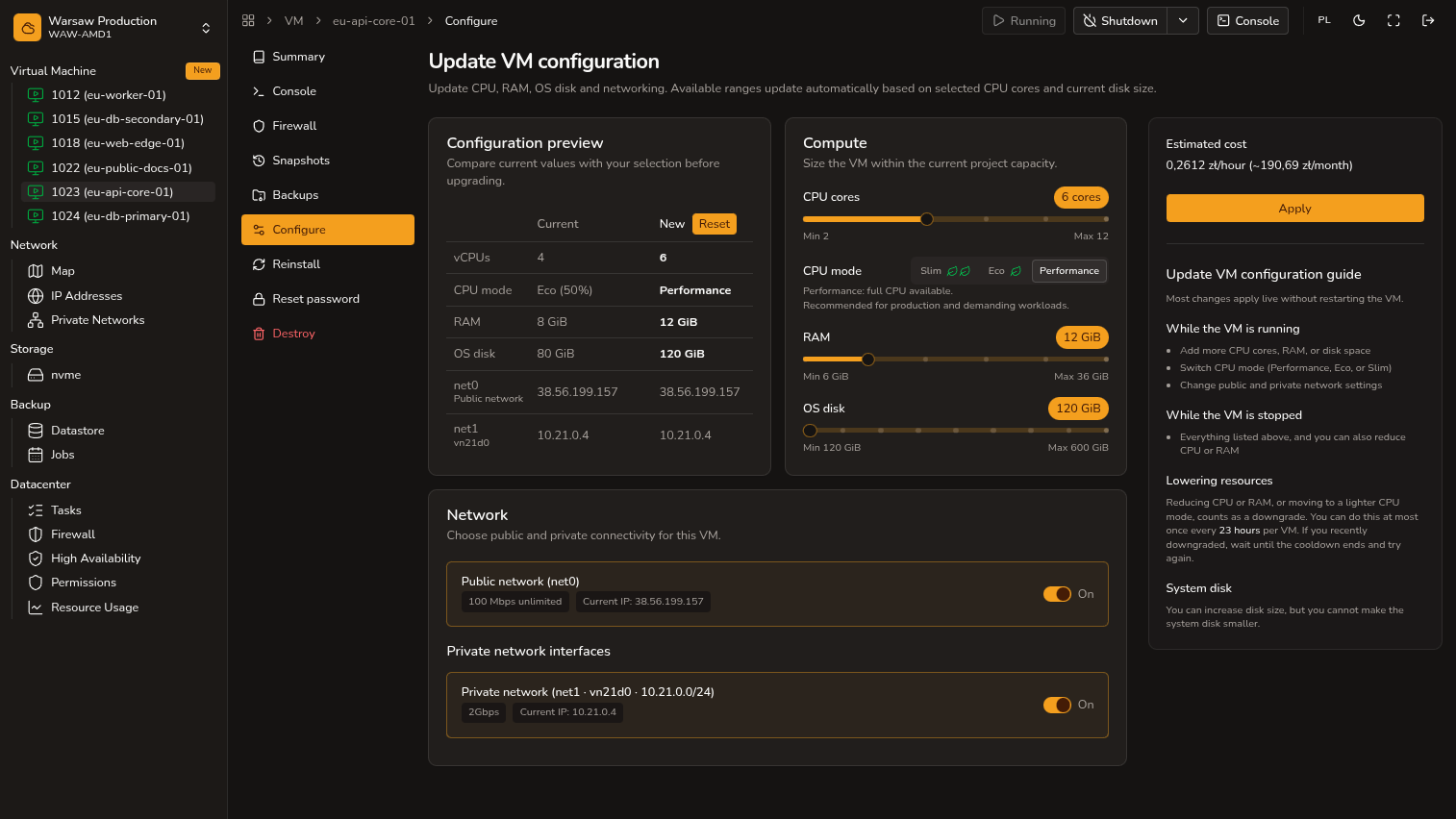
Change CPU mode, vCPU, RAM, disk size, and network interfaces.
Before you begin
- Admin or Superadmin access to the project.
- While the VM is running, you can increase vCPU, RAM, and OS disk, change CPU mode, and edit WAN/LAN interfaces.
- To lower CPU or RAM: VM must be stopped.
Steps
- Open
VM → Resize. - Change CPU mode, vCPU, and RAM within available tiers.
- Grow the OS disk if you need more space.
- Change WAN or private NICs and review the access impact. To change the public IP: turn WAN off, save, turn WAN on again, and choose Auto or a reserved address (no VM reboot).
- Click Save.
To change the public WAN IP without rebooting the VM — turn WAN off, save, turn WAN on again, and choose Auto or a reserved address.
Watch out
- Lowering vCPU, RAM, or moving to a weaker CPU mode (e.g. Performance → Eco): at most once per 23 hours per VM. Lowering vCPU/RAM requires a stopped VM.
- OS disk can only grow; it cannot shrink.
- CPU mode can be changed while the VM is running.