Network map
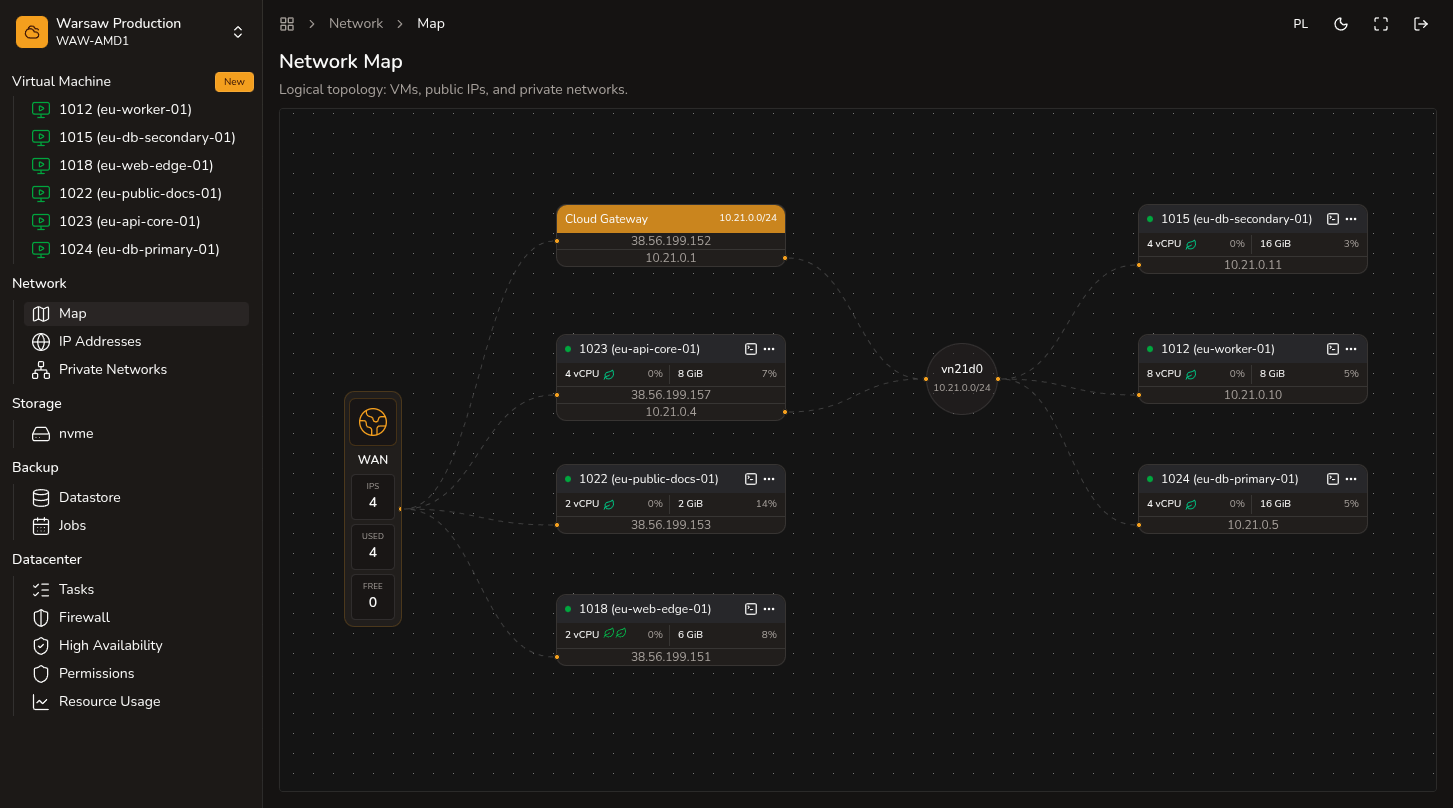
Logical topology view of the project: VMs, public IPv4 addresses, private networks, and Cloud Gateway.
Before you begin
- Access to the project in the Public Cloud portal.
Steps
- Open
Network → Map. - On the left, check the WAN node — public IPv4 counts in the project (total, used, free).
- On VM cards, see public and private addresses, status, and vCPU/RAM with current usage. Click the VM name to open its summary.
- Private networks appear as circles with vnet and CIDR; VMs on LAN are linked to the network.
- Cloud Gateway connects WAN to a private network — click the gateway name to open that private network’s settings.
- On a VM card, use the console icon (Open Console in New Window) for a running VM, or the ⋯ menu for power actions.
Watch out
- This is a topology view, not network editing — change addresses and interfaces in
VM → Resize,Network → IP Addresses, or the private network settings. - Animated lines to a VM mean it is running; Cloud Gateway lines are always animated — this is not live traffic measurement.
- VMs without an assigned IP appear separately on the right side of the map.